This page covers Project 4 of the NCERT Kaushal Bodh – Grade 7 textbook, the Class 7 vocational education book published by NCERT. Project 4, titled AI Assistant, runs across 24 printed pages (NCERT pages 83–106) and asks you to build an AI Assistant that helps someone who has recently moved into your locality.
The official Project 4 Class 7 Kaushal Bodh PDF is offered right below, and the rest of this page explains what the chapter expects you to do.
Download the Project 4 Class 7 Kaushal Bodh PDF
Open the official Project 4 Class 7 Kaushal Bodh PDF, the complete AI Assistant chapter as printed by NCERT in the Kaushal Bodh – Grade 7 textbook, with all nine activities, seven fill-in tables and the Planning Your Project flowchart. It is the chapter file itself, not a summary.
- Official NCERT chapter
- 24 pages, printed as NCERT pages 83–106
- Published on ncert.nic.in
What is inside the Project 4 chapter
The counts table below shows how much Project 4 holds — sections, figures, tables and example questions — so you know the size of the file before you open it.
- Nine activities, from Activity 1 (Human vs Machine) to Activity 9 (Sharing with others), each with an Aisha does and You do model.
- Seven fill-in tables (4.1–4.7) plus a project timeline table, which you complete as you work.
- A worked example: Aisha uses AI to sort mango varieties, and you repeat her steps for your own locality data.
- Reflection questions at the end, including ‘What did I learn from others?’, ‘What did I do and how long did it take?’, and ‘Think and Answer’.
- The Planning Your Project flowchart (Figure 4.13), which you fill to make the algorithm for your own assistant.
What the AI Assistant project asks you to do
The project has one goal: build an AI Assistant that helps someone newly moved into your locality learn what they need to know. Everything else — the activities, the tables, the testing — is a step towards that goal.
Project goal and outcomes
NCERT states the goal on page 83 and the outcomes on page 85. By the end you should be able to:
- Understand how AI can be a useful tool for humans.
- Collect data that can be used to create an AI Assistant.
- Train a machine to recognise data based on your instructions.
- Create an AI Assistant to help someone learn about your locality.
Devices and tools
You need a device with a camera and Internet access. The book lists these on page 86:
- A computer with webcam and microphone/speaker, or a tablet with Internet access.
- A camera for photographs and audio recording — a parent’s or teacher’s smartphone works if you do not have one.
- Tools: Teachable Machine and Scratch, plus any other tool you find useful.
- Search keywords for more tools: ‘Machine Learning Website + Image Recognition’, ‘Machine Learning Website + Sound Recognition’, ‘Machine Learning Website + Image and Sound Recognition’.
Safety rules you must follow
Page 86 is explicit about safety. Follow these rules while collecting data:
- Make a list of Internet ‘dos’ and ‘don’ts’ with your teacher and follow it.
- Limit screen time as advised; go out and play.
- Get permission before taking photos — ask a shopkeeper before photographing their shop.
- Be respectful of customs that seem unfamiliar to you.
- Protect plants and animals when photographing them.
All nine activities at a glance
The activity table below maps each activity to what you do and where it appears in the book.
| Activity | What you do | NCERT page |
|---|---|---|
| Activity 1 — Human vs Machine | Compare machine speed, drawing guessing and travel-time prediction with your own. | 87–88 |
| Activity 2 — AI can see, listen and speak | Try Google Lens, Photomath and Bhashini; record what the apps do. | 89–90 |
| Activity 3 — Is AI creative? | Write a story, prompt AI, compare versions, and clean a sketch with AutoDraw. | 91–93 |
| Activity 4 — Preparing to design your AI Assistant | Choose categories and sub-categories of information about your locality. | 94–95 |
| Activity 5 — Teaching the machine to recognise images | Collect varied images and organise them into labelled folders. | 97–98 |
| Activity 6 — Training for recognition | Upload images to Teachable Machine, label sub-categories, train the model. | 99 |
| Activity 7 — Testing and improving | Test with new images or a webcam, add data where it errs, retrain and export. | 100 |
| Activity 8 — Making the assistant interactive | Add a character and personality in Scratch or MIT AI Raise Playground. | 101–102 |
| Activity 9 — Sharing with others | Let others use the assistant and give feedback; note what you would change. | 102–103 |
Activity 1 specifically runs three exploratory tests — the Speed Test, the Creative Guessing Game and the Prediction Test — and each one shows a different human-versus-machine difference (NCERT, p. 87).
Aisha’s example mapped to your project
Activities 4 to 7 follow Aisha step by step. Use her path as your own template:
| Aisha’s step (mangoes) | Your step (locality data) |
|---|---|
| Chooses Mango as category; Alphonso, Himsagar, Malgova and Raspuri as sub-categories (p. 95) | Pick a category such as Food, Plants or Animals, then list your own sub-categories. |
| Collects 12–15 images per variety, varied by angle, background, brightness and size (p. 96) | Collect the same variety of images for each of your sub-categories. |
| Stores images in folders named by sub-category (p. 98) | Keep each sub-category in its own clearly named folder. |
| Labels classes as Mango_Alphonso, Mango_Langra, Mango_Kesar and trains the model (p. 99) | Label each class with category_sub-category, for example Food_Samosa, and train. |
| Tests with new images and webcam, adds more images where it errs, retrains, exports (p. 100) | Test, add images to failing classes, retrain and export your model. |
Key concepts: intelligence, artificial intelligence and machine learning
The project assumes you understand how intelligence and learning work before you train a machine. These ideas, defined across pages 84–104, carry the whole chapter.
Intelligence
NCERT defines intelligence as the ability to learn and to use what you have learnt in new situations (p. 84). It keeps growing: the more new situations you handle, the more your intelligence grows.
How humans and machines learn alike
Think of the first day of school. You meet many people; your brain tries to remember faces and names, then after meetings and interactions it starts recognising each person and recalling qualities. AI works the same way — you feed it examples, then it recognises what it has never seen before (p. 84).
Artificial intelligence
When machines become intelligent like humans, that is Artificial Intelligence (p. 84). You already use it in navigation apps, image recognition, translation and voice-based tools. The book adds that AI can automate repetitive tasks, reducing human effort (p. 84).
Machine learning
To recognise a banyan tree, you upload many images — in shade and light, at different growth stages, angles and geographies — and associate them with the name ‘banyan tree’. Gradually the machine connects images to names and other information. This training-with-data process is Machine Learning (p. 84).
Data and the AI prompt
Data is any information you can see, hear or record — words, numbers, pictures, sounds or videos (p. 94). An AI prompt is a set of detailed instructions or questions that gets AI to generate a specific reply; it is more detailed than search words (p. 92).
Algorithm
An algorithm is a detailed list of instructions written down systematically so a machine can do the work (p. 104). In this project, your filled-in Figure 4.13 pathway is your algorithm.
What AI cannot do
The book is careful on pages 84–85: AI can be trained to identify what makes an artwork beautiful, but it will never feel emotions as humans do. You are comparing yourself with a tool, not with another person.
Reading the figures: what the diagrams in the project show
The figures in this project either show what AI can do today or show a step of the build. Use the table to find where each diagram sits, then read the notes below each group.
| Figure | NCERT page | What it shows | What to notice |
|---|---|---|---|
| Fig 4.1 | 83 | A student using AI to interact and learn about the world | AI as a learning partner, not a replacement |
| Fig 4.2 | 86 | Excess screen time warning | Go out and play; limit your screen time |
| Fig 4.3 | 89 | Prof. Stephen Hawking | AI restored communication for a paralysed scientist |
| Fig 4.4 | 90 | Using AI on mobile devices | AI apps can see, listen and speak |
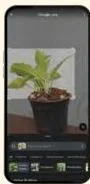
| Fig 4.5 | 91 | A student using an AI tool to identify a plant | Image recognition in action |
| Fig 4.6 | 93 | Exploring what AI can and cannot do | AI has limits; humans still matter |
| Fig 4.7 | 93 | Using AutoDraw | AI cleans up a rough handmade sketch |
| Fig 4.8 | 96 | Aisha categorising mangoes into varieties | Varied images — angles, backgrounds, brightness, sizes |
| Fig 4.9 | 98 | Machine learning to identify images | Showing images, then the machine learns to identify |
| Fig 4.10 | 99 | Teachable Machine tutorial | Upload, label and train the model |
| Fig 4.11 | 100 | Training and exporting the model | Export Model → Download Model after training |
| Fig 4.12 | 102 | MIT Raise Playground tutorial | Load your model and make the assistant interactive |
| Fig 4.13 | 105 | Pathway followed to create the AI Assistant | Your project’s algorithm, step by step |
AI in the world around us
Figure 4.1 opens the chapter with a student using AI to interact and learn about the world. It introduces the idea that AI is a tool you work with, not something that replaces you.


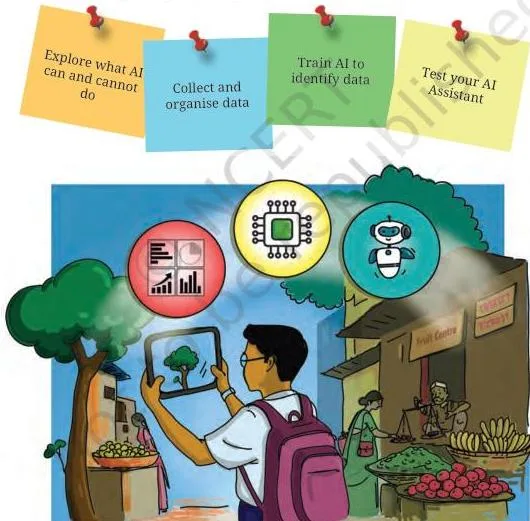
Figure 4.3 shows Prof. Stephen Hawking. The book tells us he lost the ability to speak as his illness paralysed his body, but he used AI to select words on a screen by tracking cheek muscle movements, and the words were converted to speech (p. 89). This figure demonstrates AI listening, seeing and speaking for humans.
Safety and exploration
Figure 4.2 is the screen-time warning: excess screen time harms mental and physical health, so you go out and play. Keep it in mind while collecting data.
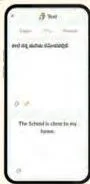
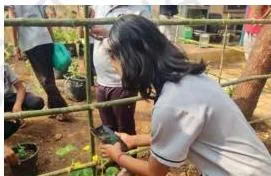
Figures 4.4 and 4.5 show AI apps in daily use. Figure 4.4 shows AI on mobile devices — the three panels match the book’s Google Lens, Photomath and Bhashini tasks (p. 90). Figure 4.5 shows a student using an AI tool to identify a plant; that is image recognition doing what your model will do (p. 91).
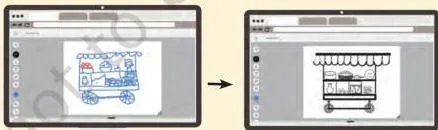
Figures 4.6 and 4.7 explore AI’s creativity. Figure 4.6 asks what AI can and cannot do, and Figure 4.7 shows AutoDraw cleaning a rough sketch of a food cart into a neat drawing (p. 93). Together they make the point that AI helps you improve your work rather than replace you.
The build: collecting data, training, testing and sharing
Figure 4.8 shows Aisha’s mango photographs in different angles, backgrounds, brightness levels and sizes. This visual is the chapter’s own guideline: without this variety the machine cannot learn (p. 96).

Figure 4.9 is a two-part diagram of machine learning: first the machine is shown different images, then it learns to identify the image. It explains why uploading varied, labelled data matters (p. 98).

Figures 4.10 and 4.11 walk through Teachable Machine. Figure 4.10 shows the tutorial — open an image project, upload images, label sub-categories and click Train Model (p. 99). Figure 4.11 shows training and exporting the model via Export Model → Download Model (p. 100).
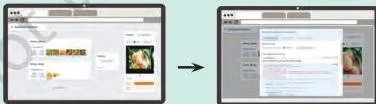
Figure 4.12 shows the MIT AI Raise Playground homescreen and workspace, where you load your trained model and connect it to an interactive character (p. 102).
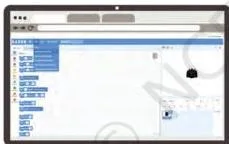
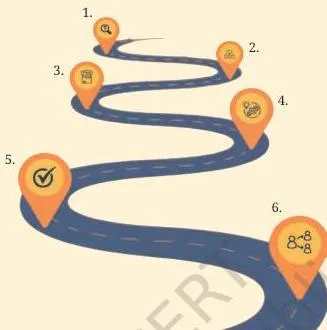
Figure 4.13 is the pathway followed to create the AI Assistant — your project’s algorithm, from deciding what to do through training, testing and sharing (p. 105). Fill the empty spaces: that is your plan.
Definitions at a glance
These are the words the project uses over and over. Learn them in the order the book introduces them.
| Term | Plain meaning | NCERT page |
|---|---|---|
| Intelligence | Ability to learn and use what you have learnt in new situations; it keeps growing. | 84 |
| Artificial Intelligence (AI) | Machines becoming intelligent like humans, used in navigation, image recognition and translation. | 84 |
| Machine learning | Training a machine with many labelled examples so it recognises new data. | 84 |
| Data | Any information we can see, hear or record — words, numbers, pictures, sounds, videos. | 94 |
| Prompt | Detailed instructions or questions that make AI generate a specific reply. | 92 |
| Model | The trained result in Teachable Machine — the AI Assistant that now recognises your data. | 99 |
| Real-time testing | Holding an object up to the webcam to see if the model recognises it live. | 100 |
| Algorithm | A detailed list of systematic instructions for getting a machine to do work. | 104 |
Common mistakes in the AI Assistant project (and how to fix them)
This project mostly goes wrong in the data you feed the machine, not in the tool. The book’s own warnings on pages 85–100 name the problems before you meet them.
| Mistake | Correct rule | How to check your answer |
|---|---|---|
| Collecting too few or nearly identical images | Collect 12–15 images per sub-category, varied by angle, background, brightness and size (p. 96). | Retrain and see whether new images in that category sort correctly. |
| Unclear labelling | Label category and sub-category together, for example Mango_Alphonso (p. 99). | Open Teachable Machine and read each class name — does it name both category and variety? |
| Accepting the first test run | When the model errs, add more images to the failing category, upload and retrain (p. 100). | Run the Activity 7 test again and note whether the errors reduce. |
| Photographing without permission | Ask permission before photographing shops, people, plants or animals; protect them from harm (p. 86). | Re-read the safety block before every data-collection outing. |
| Writing a thin prompt in Activity 3 | Give detailed instructions — what happens, what you see, hear, eat and feel (pp. 92–93). | Compare your first story with the detailed-prompt version; the second should be better. |
| Treating AI as human | Treat AI as a tool that can be trained to convey beauty but cannot feel (p. 85). | Test the assistant on an emotion question and remember what the book says. |
When the model still fails after a retrain, go back to the data: more images, more variety, clearer labels. Testing exists to find exactly which category is weak (p. 100).
Completing and presenting the project: what to keep and finish
Because this is a project chapter, the proof of work is the work itself — the filled tables, the tested model, the reflections. Collect these pieces as you go.
- Every table filled: tables 4.1–4.7 and the timeline table on pages 103–104.
- The test-and-feedback log from Activity 7 (p. 100) and Activity 9 (p. 102).
- Reflection answers: ‘What did I learn from others?’, ‘What did I do and how long did it take?’, and the ‘Think and Answer’ questions (pp. 103–104).
- The completed Planning Your Project pathway (Figure 4.13, p. 105) — your project’s algorithm.
- The exported model (p. 100) and the interactive character built in Activity 8 (pp. 101–102).
- The audio extension from ‘What else can I do?’ (p. 104), if you try it: classification, data collection and training, testing and improvement.
- Career examples to note from p. 106: data scientist, machine learning assistant, software engineer, robotics engineer, research scientist.
A note on assessment: textbook contents and the examinable syllabus are not always identical — check the current official syllabus for how this vocational subject is assessed in your school. The chapter itself gives no marks or weightage figures.
The AI Assistant project in one page
This is the chapter’s own planning pathway (Figure 4.13) in words — six steps that turn a blank page into a working assistant.
- Decide what the assistant should do and whom it helps (p. 83).
- Choose categories and sub-categories of locality information (pp. 94–95).
- Collect 12–15 varied images per sub-category — different angles, backgrounds, brightness and sizes (p. 96).
- Organise images into labelled folders and train the model in Teachable Machine (pp. 98–99).
- Test with new images and a webcam; add data where it errs, retrain, then export (p. 100).
- Add a character in Scratch or MIT AI Raise Playground and share it for feedback (pp. 101–102).
Three big ideas hold the project together:
- AI learns from data the way you learn from repeated experience.
- Labels teach the machine the meaning of what it sees.
- Testing shows what data the model still needs.
Your tool list: Teachable Machine, Scratch, MIT AI Raise Playground, AutoDraw, Google Lens, Photomath and Bhashini.
Related resources
This listing is maintained for the 2026-27 academic session using the NCERT textbook information available to us. NCERT remains the authority for confirming the latest edition.
Use these pages to move around the book and the site:
- Kaushal Bodh Grade 7 book page — the full book with all projects, including the neighbouring Project 3 and Project 5.
- Class 7 NCERT books hub — every Class 7 textbook on this site.
- Class 7 vocational education notes — chapter-wise support for Kaushal Bodh.
- Class 7 CBSE notes hub and all CBSE notes.
- Work with Machines and Materials notes and Work in Human Services notes — related vocational education topics.
- Official source: NCERT textbook portal for the Kaushal Bodh Grade 7 PDF.
- Official syllabus: cbse.gov.in for the current vocational education syllabus.
Sources and data verification
- All content on this page describes Project 4 (AI Assistant) of the NCERT Kaushal Bodh – Grade 7 textbook, official edition published on ncert.nic.in.
- This page covers only this project chapter of this book, not other vocational education books or other projects.
- The page is maintained for the current academic session using the NCERT information available to us; NCERT’s printed page numbers (83–106) are used throughout.
- NCERT settles textbooks, editions and PDFs; CBSE settles curriculum, syllabus and examinations — textbook contents and the examinable syllabus are not always identical, so check the current official syllabus.
| What the chapter holds | Count | Where it is used |
|---|---|---|
| Printed pages | 24 | |
| Figures with NCERT captions | 30 | |
| Tables | 9 | |
| Official NCERT PDF | Download the chapter PDF | the chapter exactly as NCERT publishes it |


Reference: NCERT Class 7 Kaushal Bodh textbook, Project 4, official edition on ncert.nic.in.
Frequently asked questions about Project 4 Class 7
What is Project 4 in the Class 7 Kaushal Bodh book?
Project 4, titled AI Assistant, is the chapter in which you build an AI Assistant to help someone who has recently moved into your locality learn about it — the food, plants, animals, music, places and customs (NCERT, p. 83).
How many images do I need to train the AI Assistant?
The book’s guideline is 12–15 images per sub-category, with variety in angle, background, brightness and size (NCERT, p. 96). More varied images give the model a better chance of recognising new examples.
What devices and tools do I need for Project 4?
A computer with webcam and microphone/speaker or a tablet with Internet access, a camera for photos, and the tools Teachable Machine and Scratch. A parent’s or teacher’s smartphone can stand in for the camera if needed (NCERT, p. 86).
My AI model is not recognising images — what do I do?
Add more and more varied images to the category that is failing, upload them, and retrain the model. Then test again (NCERT, p. 100). Testing exists precisely to show you which category lacks data.
What is the difference between artificial intelligence and machine learning in this chapter?
Artificial intelligence is machines becoming intelligent like humans. Machine learning is the process of training a machine with data — showing it many labelled examples until it recognises new examples (NCERT, p. 84).
Can the AI Assistant feel emotions?
No. The book states that AI may be trained to convey that an artwork makes you feel good, but it will never be able to feel emotions as humans do (NCERT, p. 85).
Explore Class 7 Vocational Education Books
Related chapters: