
This is the official NCERT Class 8 Kaushal Bodh (Vocational Education) chapter, Project 4: Home Automation — 24 printed pages, from page 83 to page 106, in the 2026-27 reprint.
The Project 4 Class 8 Home Automation chapter PDF is right below, and underneath it a plain-language walkthrough of the same project — what automation means, the sensors and circuits you will use, and the six activities you will do.
Get the Project 4 Class 8 Home Automation PDF
The file below is the same chapter that appears in the printed Kaushal Bodh book, published by NCERT on its official website. Use it when you want the full activity text, the observation tables and the original diagrams beside your own work.
The official Class 8 Kaushal Bodh Project 4 Home Automation chapter PDF opens straight from ncert.nic.in in your browser — no login or fee — and it is the version to trust for school work.
What is inside this chapter
The table below lists what sits inside this chapter — its sections, figures and tables — so you know the size of the file before opening it.
What this project actually asks you to do
This is a hands-on project, not a reading chapter. By the end you will have made circuits, written simple programmes and built a small automation system of your own — but the book starts much more quietly, with looking around you.
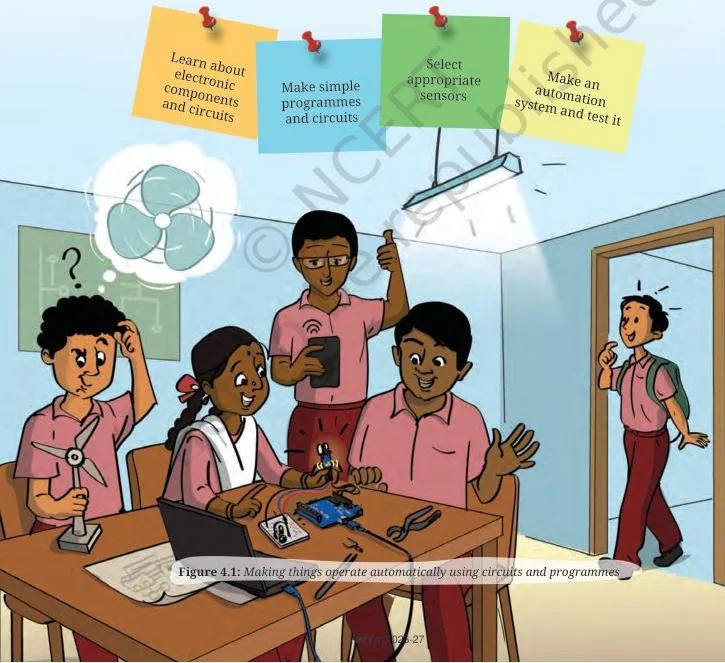
Figure 4.1 is the project in one picture: a device operating on its own, driven by a circuit and a programme. Everything else in the chapter fills in one of those two halves — the electronics and the instructions.
The book defines automation as using technology to control everyday devices automatically, so you do not switch things on and off by hand; sensors, controllers and simple computer programmes run the task instead (NCERT, p. 83).
Three examples carry this definition in the opening pages:
- Classroom: a motion sensor switches lights off when it detects no motion, saving energy and cutting bills.
- Garden: a moisture sensor in the soil signals a pump when the soil is dry, watering plants only as needed.
- Room temperature: a thermostat adjusts heating or cooling on its own.
The book then makes a surprising point: automation is not new, and it did not start with machines. Nature and the human body run on the same pattern (NCERT, pp. 83-84):
- Your heart beats, lungs breathe and stomach digests without conscious effort.
- The sun rises and sets daily; the water cycle evaporates, forms clouds and returns rain.
- Birds migrate without GPS, flowers bloom at the right time, and bees build honeycombs unaided.
Humans copied the pattern. A thermostat regulates a room the way the body sweats to cool itself, and a motion sensor switches on a light the way the eye’s pupil adjusts to brightness (NCERT, p. 84).
The opening closes with the project’s goal: five things you will be able to do by the end (NCERT, p. 86):
- Name the electronic components that appear in automation systems and recognise them on sight.
- Read a circuit diagram, and draw one of your own.
- Design an automation system that would work at home or at school.
- Pick the right sensor for a job and programme it.
- Install the finished system and test whether it actually works.
The project also ends with reflection: the last page, ‘Think and Answer’ (NCERT, p. 106), asks what you enjoyed, how sensors compare with human senses, and which jobs connect to this work.
Key ideas: the automation cycle and the parts that run it
The whole project rests on one three-step idea: sense, decide, act. Once you see that cycle, every sensor, circuit and activity in the chapter falls into place.
What automation means
Before any electronics, the book shows that automation is a pattern, not a machine. The classroom light, the watering pump and the thermostat are all the same story — something detects a change, something decides, something acts.
The automation cycle: input, processing, output
The pattern becomes explicit at pages 95-96. When you touch something hot, your skin senses the temperature — that is input. Your brain processes the signal and decides to act — that is processing. Your brain signals your hand to move away — that is output (NCERT, p. 95).
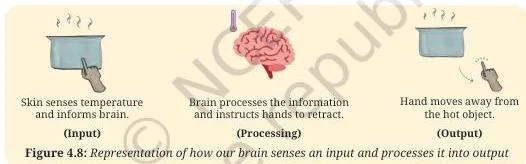
The figure on page 95 shows that everyday reflex as a picture: skin senses (input), brain decides (processing), hand withdraws (output). An automated system does exactly the same thing with hardware.
The book names the three steps explicitly:
- Input (sensing): sensors detect changes in the surroundings — motion, temperature or light. Example: a motion sensor detects movement in a room.
- Processing (decision making): the microcontroller analyses the input and decides. Example: if movement is detected, it turns the lights on.
- Output (action): the system carries out the action. Example: the lights turn on automatically.
This cycle repeats as long as the system is active, which is why automation reduces manual work (NCERT, pp. 95-96).

Figure 4.9 shows the microcontroller in the middle of that cycle — it receives the input from sensors, handles the decision and commands the output devices. The set of instructions you give the microcontroller is called a programme (NCERT, p. 96).
The same three steps describe every device. Map any automation system with three boxes:
| Device | Input (sensing) | Processing (decision) | Output (action) |
|---|---|---|---|
| Street light | Motion sensor detects movement | Microcontroller decides the light should switch on | Light turns on |
| Water sprinkler | Moisture sensor reads dry soil | Microcontroller decides water is needed | Pump turns on and waters |
| Hand dryer | Presence sensor detects hands | Processor decides to start the motor | Motor blows air |
The first two rows come from the book: the street light is the example in Activity 5, and the water sprinkler is the case you complete yourself (NCERT, pp. 99-100). The hand dryer is the same cycle in another place.
Sensors detect, microcontrollers decide, output devices act
Three kinds of parts do the three jobs. Sensors gather the input, the microcontroller is the brain that processes it, and output devices carry out the action.
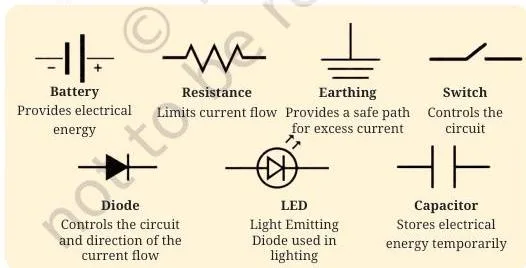
Before you read any circuit diagram, look at the symbols chart on page 89. It gives every electrical and electronic part a standard shorthand, so the same battery, resistor or LED is drawn identically in every diagram of the project.
Output devices take commands from the microcontroller to perform tasks — LEDs, buzzers, DC motors, servo motors, stepper motors, relays, LCDs and speakers are the examples the book lists (NCERT, p. 97).
The two beginner microcontrollers in this project are the Arduino Uno and the Raspberry Pi (NCERT, p. 96). The Uno’s pins are explained in the figure walkthrough below.
Reading the chapter’s figures
The figures below carry the chapter’s main ideas. Read each one with its caption, and later diagrams will look familiar instead of puzzling.
Figure 4.2 — a journey of automation
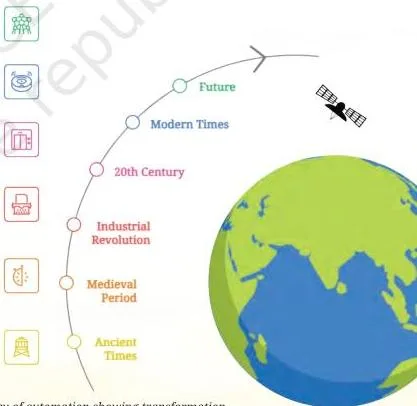
Read Figure 4.2 as a timeline. It starts with water clocks and sundials, which kept time by the flow of water or the position of the sun.
Mechanical clocks came next, then early smart machines such as the Jacquard Loom and the steam engine, then electronic devices and computers.
The timeline ends with smart homes and robots, and finally AI-powered smart cities where AI manages transport, health and energy (NCERT, p. 85).
Figure 4.5 — the AC mains warning

Home appliances run on 230 V AC supply, but every circuit you build in this project runs on DC. The warning figure on page 89 is there because connecting a battery circuit into the wall socket would destroy the parts and is dangerous; the book says plainly to connect circuits only to DC batteries while you are a beginner (NCERT, pp. 88-89).
Figure 4.10 — Arduino Uno and Raspberry Pi
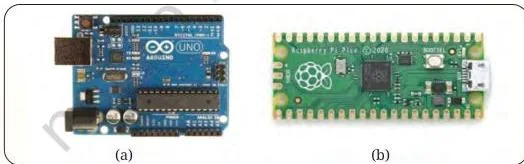
Figure 4.10 shows the two boards beginners use most: the Arduino Uno and the Raspberry Pi. The book’s point is that you choose a microcontroller to suit your application — more processing power for bigger tasks (NCERT, p. 96).
Figure 4.11 — the breadboard
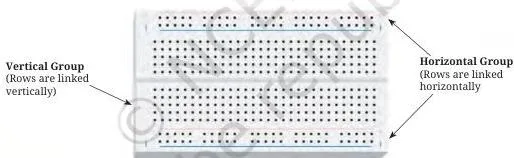
Inside a breadboard, metal strips connect components without soldering, so you can test a circuit quickly and rearrange the parts when something does not work. The chapter is explicit: the breadboard is only for prototyping — once the circuit works, solder the components to make it permanent (NCERT, p. 97).

Figure 4.12 — the Arduino Uno pin guide
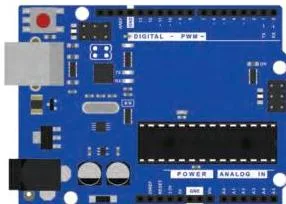
Figure 4.12 labels every working part of the Arduino Uno, and the book explains each one (NCERT, p. 98):
- Analog pins A0 to A5 connect input or output devices such as LEDs, sensors and motors.
- Digital pins 0 to 13 send On-Off signals and control LEDs, buzzers and motors.
- The USB port connects the board to a computer for programming.
- Power can come from the USB cable or a battery.
- The reset button restarts the programme running on the board.
- GND (ground) is the voltage reference point that protects the circuit and the person working on it.
Figure 4.15 — input, process and output as hardware
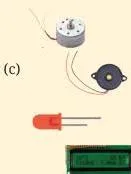
Figure 4.15 shows the cycle as physical parts: sensor modules for input, a microcontroller for processing, and a motor toy as output. Activity 5 asks you to name the input, process and output for each one (NCERT, p. 99).
Every component and sensor, explained plainly
Use this section as a lookup table while you work. Figure 4.3 shows the parts, Figure 4.4 shows the sensors, and the tables below say what each one is for.
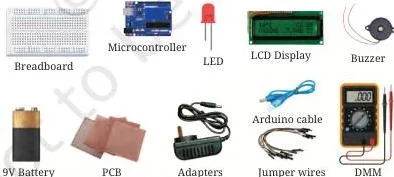
All eleven components in Figure 4.3
| Component | What it does and how it connects |
|---|---|
| Breadboard | Metal strips inside connect components without soldering, so circuits can be tested; component legs push into its holes. |
| Microcontroller (Arduino Uno or Raspberry Pi) | Programmed from a computer to control LEDs, buzzers, motors and sensors; wires from its pins carry signals. |
| LED | A tiny light that glows when current flows through it; the longer leg is positive (anode), the shorter is negative (cathode). |
| LCD display | A small screen that shows messages and sensor readings — 16 characters per row, two rows — connected to the Arduino by multiple wires, with a small potentiometer to adjust brightness. |
| Buzzer | Produces sound when electricity flows through it; used in alarms, timers and notifications. |
| Battery | A portable power source that stores energy and gives DC power to circuits. |
| Printed circuit board | A hard insulating board with thin copper tracks that connect components into a permanent circuit. |
| Adapter | Converts high-voltage AC from a wall socket into low-voltage DC (commonly 9 V or 12 V) that an Arduino can use. |
| Arduino cable | Connects the Arduino board to a PC. |
| Jumper wires | Small insulated wires that connect points on a breadboard without soldering. |
| Digital multimeter | Measures voltage, current and resistance; the tool for testing and troubleshooting circuits. |
The LED detail matters: its longer leg is the anode (positive) and the shorter leg is the cathode (negative) (NCERT, p. 86). Reversing them is the beginner error covered below.
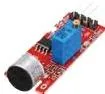
The three sensors in Figure 4.4
| Sensor | What it detects | What it does |
|---|---|---|
| Motion detection sensor | Infrared radiation (heat) from objects such as humans and animals | Detects the heat change when someone moves and sends a signal to trigger an action |
| Sound sensor | Sound levels in the surroundings | Converts sound vibrations into electrical signals that can control LEDs or buzzers |
| Temperature sensor (DHT11) | Temperature of air, water or any surface | Provides temperature readings in degrees Celsius |
The chapter also lists the ‘other material and tools’ you will need (NCERT, p. 88):
- Soldering iron, solder and flux
- Multimeter
- Screwdriver and wire stripper
- A laptop or computer
Mistakes students make in this project
Five errors cause most of the trouble in this project, and all five are easy to avoid once they are named. The book’s safety list (NCERT, p. 88) covers the physical risks first:
The five safety rules
- Electrical: avoid short circuits and check for loose connections.
- Soldering: wear safety goggles, do not inhale the fumes, and keep hands away from the hot soldering iron.
- Tools: use wire cutters and strippers carefully to prevent injuries.
- Workplace: keep the workspace organised and free of unnecessary wires.
- Internet: ask your teacher for help; do not upload or download anything, and never share personal information online.
Then comes the warning that matters most for these circuits:
Home appliances run on 230 V AC, but the circuits in this project run on DC. The components are made for a few volts from a battery, not for mains voltage, so connecting a project circuit to a wall socket would damage it and is dangerous. The book’s guidance: beginners should make circuits only with DC batteries (NCERT, pp. 88-89).
Five wiring and design mistakes
Beyond safety, the design errors below repeat in almost every batch of projects:
| Mistake | Correct rule | How to check your answer |
|---|---|---|
| Connecting a project circuit to AC mains | Use only DC batteries or USB power for these circuits | Check the power source before switching on — battery or USB only |
| Reversing the LED legs | Longer leg goes to positive (anode), shorter to negative (cathode) | Match the longer leg to the positive rail before powering up |
| Using the breadboard as the final build | The breadboard is for prototyping; solder the working circuit to make it permanent | Ask: is this a test model or the finished device? (NCERT, p. 97) |
| Building hardware before simulation | Simulate first, so mistakes happen on screen, not in real components | Did the simulated circuit work before you touched real parts? (NCERT, p. 91) |
| Confusing inputs and outputs | Sensors sense and send signals (input); LEDs, buzzers, motors and LCDs act (output) | For each part ask: does it detect a change or perform an action? (NCERT, pp. 88, 96-97) |
The root cause behind most of these is rushing to real hardware. Simulation exists precisely so your first mistakes cost nothing (NCERT, p. 91).
The six activities and what each one builds
The project moves from watching to building; each activity adds one layer, and Activity 6 is your finished automation system. The route runs exactly as listed below.
- Activity 1 — Explore automation around you (NCERT, p. 90): look at the classroom, home, car, market and community; record what works automatically in Table 4.1. The table starts with a refrigerator that switches itself off on a voltage surge.
- Activity 2 — Simulate circuits (NCERT, pp. 91-92): build an LED with a 220 ohm resistor, a 9 V DC battery and a switch, then a second version with a buzzer, on Tinkercad or another simulation platform.
- Activity 3 — Build with physical components (NCERT, p. 93): make the same circuits with real parts once the simulation works.
- Activity 4 — Make the circuit smart (NCERT, p. 94): replace the manual switch with a sensor so the circuit decides for itself.
- Activity 5 — Explore the automation cycle (NCERT, p. 99): state the input, process and output for a street light, a water sprinkler and a device of your choice; a ready-made smart light example (PIR sensor, Arduino Uno, LED) is given at pages 100-101.
- Activity 6 — Make your own automation system (NCERT, p. 102): plant watering, obstacle detector, fire alarm, gate opener, theft alarm or smart fan.
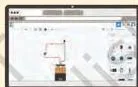
Figure 4.6 lays down the simulation routine in four steps — the same habit for every circuit in Activities 2 and 3:
- Draw the circuit you want to test.
- Open Tinkercad or another simulation platform.
- Open the workplace and place the required components.
- Make the connections and test the circuit.
Which skill each activity builds
The five outcomes from page 86 map onto the six activities like this:
| Skill from ‘What will I be able to do?’ (p. 86) | Built in activities |
|---|---|
| Identify electronic components | Activities 2, 3 and 4, where you handle and name every part |
| Read and draw electronic circuits | Activities 2 and 3, drawing the circuits and their diagrams |
| Design an automation system | Activities 4, 5 and 6, from smart circuit to your own project |
| Select sensors and programme them | Activities 4, 5 and 6, choosing the sensor and writing the programme |
| Install and test the system | Activities 3 and 6, building the real circuit and testing it |
Worked example: change the Blink delay
Your first Arduino programme is Blink (Arduino IDE: File → Examples → Basics → Blink). It switches the board’s onboard LED on and off using a delay command; the default is 1000 milliseconds, and the chapter asks you to change that value and upload again (NCERT, pp. 98-99).
The delay value is half of one blink cycle, because one blink means ‘on for the delay, then off for the delay’. Here is what your change does:
| Value in the delay command | What the LED does | How fast it blinks |
|---|---|---|
| 1000 ms (default) | On for 1 second, off for 1 second | The default blink — start from here and change the delay |
| 500 ms | On for half a second, off for half a second | Twice the default speed — two full blinks in the time the default takes for one |
| 2000 ms | On for 2 seconds, off for 2 seconds | Half the default speed — one full blink in the time the default takes for two |
Check the arithmetic yourself: one full blink is on + off, so the cycle lasts twice the delay. At 500 ms the cycle is 1 second; at 2000 ms it is 4 seconds — slow enough to watch the LED sit off for a full two seconds.
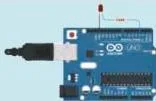
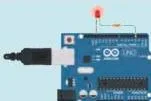
Figures 4.13 and 4.14 show the two states your programme produces — the onboard LED off, then on, then off again. Upload the programme, watch the two states alternate, and change the delay to feel what the number does (NCERT, p. 99).
The time log
The project asks you to record how long each activity took, in periods, so you can see which step cost the most time (NCERT, p. 105).
| Activity | 1 | 2 | 3 | 4 | 5 | 6 |
|---|---|---|---|---|---|---|
| Time taken (periods) | — | — | — | — | — | — |
What the project expects you to be able to do
The five outcomes listed above are the skills the project builds. The closing pages ask you to demonstrate them, in this order:
- ‘Reflect on your learnings’ (NCERT, p. 103): describe the automation system you want to make, its input, process and output, the materials, any code you modified, and a block diagram or sketch; then say whether it worked and what you would change.
- ‘What did I learn from others?’ (NCERT, p. 104): name precautions against electricity fluctuations and the three most important things you learned from experts or peers.
- ‘What did I do and how long did it take?’ (NCERT, p. 105): finish the time log.
- ‘Think and Answer’ (NCERT, p. 106): say what you enjoyed, compare sensors with human sense organs, and explore jobs related to automation.
The sensors-versus-senses question is the deepest one in the project. A motion sensor detects infrared heat the way the eye detects light, a sound sensor picks up vibrations the way the ear does, and the temperature sensor reads heat the way the skin does (NCERT, p. 106).
What sensors cannot do is respond to emotion, mood or context. The book asks outright whether systems could ever be designed to respond to human emotions — a question to argue about, not to memorise.
The last question turns to careers. The book names automation engineer, technical support specialist and programmer, and asks you to find other related jobs by looking around and speaking to people (NCERT, p. 106).
One honest caution: textbook contents and the examinable syllabus are not always identical — check the current official CBSE syllabus for your class before examinations.
The whole project in one page
If you have one minute before class, read this list:
- Automation means using technology to control devices without a human switch (NCERT, p. 83).
- The cycle is input (sensing) → processing (decision by the microcontroller) → output (action) (NCERT, pp. 95-96).
- Sensors are the inputs: motion (infrared heat), sound (vibrations), temperature (DHT11) (NCERT, p. 88).
- The brain is a microcontroller — Arduino Uno or Raspberry Pi — programmed from a computer (NCERT, p. 96).
- Output devices act: LED, buzzer, motor, LCD and more (NCERT, p. 97).
- The breadboard is for testing without soldering; the final circuit gets soldered to become permanent (NCERT, p. 97).
- Safety: project circuits run on DC batteries, never on the 230 V AC mains (NCERT, pp. 88-89).
- The order of work: observe automation in your surroundings → simulate → build → add a sensor → map the cycle → build your own system (NCERT, pp. 90-102).
Related chapters and resources
Project 4 sits inside the NCERT Class 8 Kaushal Bodh (Vocational Education) textbook alongside two other hands-on projects. Their notes live on the same site:
- Work with Machines and Materials — the notes page for the other project chapter in the same book
- Work in Human Services — another project chapter from the same Kaushal Bodh book
For the wider subject notes, start at the Class 8 vocational education notes, or the full Class 8 notes hub. The CBSE notes home page covers every class.
The authoritative source for this chapter and every other NCERT book is the NCERT website; the official PDF link above leads there.
| What the chapter holds | Count | Where it is used |
|---|---|---|
| Printed pages | 24 | |
| Figures with NCERT captions | 27 | |
| Tables | 2 | |
| Official NCERT PDF | Download the chapter PDF | the chapter exactly as NCERT publishes it |





Reference: NCERT Class 8 Kaushal Bodh (Vocational Education) textbook, chapter 4, official edition on ncert.nic.in.
Sources and data verification
- This page describes the NCERT Class 8 Kaushal Bodh (Vocational Education) textbook, chapter 4, Project 4: Home Automation, printed pages 83-106, with the official PDF on ncert.nic.in.
- It covers this one project chapter only, not other vocational education textbooks or other projects in the same book.
- The listing is maintained for the current academic session using the NCERT information available to us.
- NCERT settles textbooks, editions and PDFs; CBSE settles curriculum, syllabus and examinations.
Frequently asked questions
What is Project 4 in Class 8 Kaushal Bodh?
Project 4 is the Home Automation chapter of the NCERT Class 8 Kaushal Bodh (Vocational Education) textbook. It runs from page 83 to page 106 — 24 printed pages — and teaches you to make electronic circuits, connect sensors and microcontrollers, and write simple programmes.
What is the automation cycle in the Home Automation project?
It is a three-step loop: input (sensing) — a sensor detects motion, temperature or light; processing (decision) — the microcontroller decides what to do; and output (action) — an LED, buzzer or motor carries it out (NCERT, pp. 95-96). A motion sensor switching on a light is the chapter’s running example.
Which sensors are used in Class 8 Project 4?
Three: a motion detection sensor that senses infrared radiation (heat), a sound sensor that converts sound vibrations into electrical signals, and a temperature sensor (DHT11) that gives readings in degrees Celsius (NCERT, p. 88).
Why should electronic circuits not be connected to AC mains?
Home appliances run on 230 V AC, but project circuits run on DC. The components are designed for a few volts from a battery, so mains voltage would damage them and is dangerous (NCERT, p. 88).
What is a breadboard and why is it used in this project?
A breadboard has metal strips inside that connect components without soldering. You use it to prototype and test a circuit quickly, and rearrange parts when something does not work; the working circuit is soldered to become permanent (NCERT, p. 97).
Which microcontroller does the project use?
The Arduino Uno or the Raspberry Pi — two boards the book recommends for beginners. On the Uno, analog pins A0 to A5 connect devices like LEDs and sensors, digital pins 0 to 13 send On-Off signals, the USB port loads programmes, and GND is the ground reference (NCERT, pp. 96-98).
Explore Class 8 Vocational Education Books
Related chapters: