Project 4 Class 6 in the NCERT Kaushal Bodh book — Vocational Education, Grade 6 — is chapter 4, the Animation and Games project, printed from NCERT page 80 onward. It is a hands-on project: you explore the games you play, meet Scratch, and build two finished products — your own game and an animated birthday card.
The official NCERT PDF of the project is right here on this page, and below it you will find every activity explained, the screenshots read for you, the coding words defined, and the mistakes to avoid.
Download the Project 4 Class 6 chapter PDF
Download the official Project 4 Class 6 Kaushal Bodh PDF (Animation and Games) from the NCERT website if you want to read the full chapter offline or print the activity pages so you can fill in the answers as you work. The link opens the official chapter file published by NCERT for this project.
If the direct file link ever changes, the official NCERT textbook portal lists the complete Kaushal Bodh book and every project chapter, so you can always confirm the file there.
What is inside Project 4 — at a glance
The table below lists what this chapter holds — its sections, figures, activities and pages — so you can see the size of the file before you open it.
What Project 4: Animation and Games asks you to do
This project is your introduction to making games and animations, not just playing them. Everything it asks you to build runs on Scratch, a visual programming language you will download on your computer or laptop (NCERT, p. 81).
The project follows one clear arc:
- Think about the games you already play — why we play, what rules and players a game needs.
- Model a favourite game with craft materials, then try out online games.
- Learn Scratch — its screen, Sprites, backdrops and code blocks.
- Build: an animated birthday card first, then your own game, planned on a storyboard and coded with blocks.
- Test, share and reflect — publish, remove bugs, and record what you learned.
The book states the goal up front: at the end of the project you will be able to create a simple Scratch project with block programming, and design games and animations using Scratch (NCERT, p. 83). Two finished products leave the project: your own game, and the animated birthday card you make for a friend.
Before you start: what you need and how to stay safe
The book lists what you need and the skills it assumes, and it asks you to settle the safety rules first. Checking these now stops you from stopping halfway through.
What you will need
The material list is short and mostly craft supplies (NCERT, p. 83):
- Computer or laptop with an Internet connection
- Scratch downloaded on that computer or laptop
- Notebook
- Pen or pencil
- Loose papers
- Markers
- Cardboard
How to keep yourself and others safe
Before Activity 1, the book asks you to discuss Internet-safety precautions with your teacher and classmates, then make your own “to do” and “not to do” list and follow it while you work. If you are in doubt, ask your teacher (NCERT, p. 84).

The figure carries the chapter’s safety message: using computers for games or searching is fun, but anything done in excess is not good, and excess screen time harms your mental and physical health.
The rule that follows is to limit your screen time as your teacher or family advises and to keep playing outside — physical sports are good for your body and mind (NCERT, p. 84).
What you need to know before you start
The book assumes you can already use the mouse and keyboard, check Internet connectivity, browse or search on a browser, and download and install software (NCERT, p. 84).
The figure below shows these basic computer functions; if any of them is new to you, the point it matters is Activity 4, because from then on the activities need the Internet and Scratch constantly.

One practical detail for later: the Scratch account in Activity 4 should be opened with an email address — the book suggests the email address of your teacher or a family member (NCERT, p. 88).
The project activities, one by one
This table maps every step of the project, so you always know which activity you are on and which page to open.
| Activity | What you are asked to do | NCERT page |
|---|---|---|
| Activity 1: Game design | Think about games by answering questions — why we play, your favourite game, what you like in it, how many can play, and its rules | p. 84 |
| Activity 2: Model your favourite game | Build a craft model of a game — a Ludo or Snakes and Ladders board from cardboard and buttons, a cricket pitch, or a field with clear boundaries — and sketch or paste a photo of it | p. 86 |
| Activity 3: Trying out online games | Play different online games and answer a Yes/No checklist about rules, characters, interaction, background, music and challenge | p. 87 |
| Activity 4: Preparing to make your own game with animation | Search for games and animations made in Scratch, then create a Scratch account using a teacher’s or family member’s email | pp. 87–88 |
| Activity 5: Build characters, objects and a backdrop | Select and import Sprites, change their costumes, choose backdrops, try drawing a Sprite, and create your own images with an AI image generator | pp. 89–90 |
| Activity 6: Programming your characters and objects | Animate a Sprite by combining Motion and Looks blocks, add Control and Events blocks, include music, and try multiple Sprites | p. 91 |
| Activity 7: Animated birthday card | Import a friend’s picture as a Sprite, animate a birthday message, add their favourite song, and save and share the card | p. 92 |
| Activity 8: Designing your game | Plan your game as a storyboard — sketch characters, how they respond, and the sequence of actions — then present the idea to peers and note their suggestions | pp. 93–94 |
| Write the code for your game (unnumbered step) | Code the planned game: build the stage, programme the Sprite, add rules with Control blocks, loops, conditionals, variables and sensing, add background music, and prepare a logo | pp. 95–96 |
| Activity 10: Trying it out | Publish the game with the Share button, ask classmates to play, and remove any bugs | p. 97 |
| Activity 11: Sharing your game | Introduce the game — its name, components and rules — through an audio or video clip or a document | p. 97 |
The closing pages of the chapter are your record of the project: What did I learn from others and how did I use it? (p. 98), What did I do and how long did it take? — a timeline where you mark the periods each activity took (p. 100), What else can I do?
— extra ideas (p. 100), and Think and Answer, which ends with the jobs connected to the project (p. 101).
The big idea: coding is talking to a computer
One idea makes every activity in this project make sense: when you click a button on a phone and it responds, your click has been translated into instructions the machine understands, and coding is how people write those instructions (NCERT, p. 82).
Three words carry that idea:
- Programme — a series of instructions to a computer or smartphone (NCERT, p. 82).
- Coding — writing those instructions, the act that makes a device respond.
- Programmer — the person who writes them; the book opens by saying people called programmers use coding to make games, animojis and moving figures (NCERT, p. 81).
Programmers communicate with devices using programming languages — the book names Javascript, Python and C++ among them (NCERT, p. 82).

This figure makes the point that computers can be spoken to in many languages, and Javascript, Python and C++ are just three of them. In visual programming languages such as Scratch, the instructions are clubbed into ready-made blocks, and you combine different blocks to create sets of instructions (NCERT, p. 82).
That is the whole secret of the project: every animation and game is a set of blocks talking to the machine.
Reading the Scratch screen: figures 4.1 to 4.13 explained

When you first open Scratch, the screen looks busy. These figures are the chapter’s own tour of the window — read them in order and nothing on it will surprise you.
Figure 4.1: learn to communicate with computer
This opening figure shows a person and a computer facing each other. It stands for the project’s founding idea — a game that moves and responds to your inputs does so because someone instructed the machine. Every block you drag in Scratch is exactly that conversation.
Figures 4.2 and 4.3: the Scratch workspace
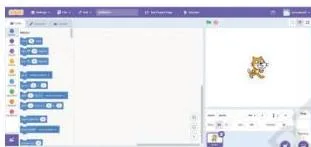
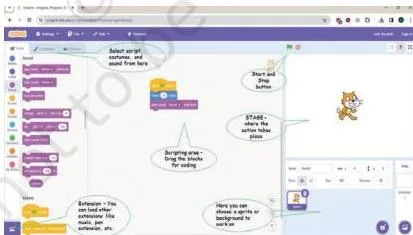
Figure 4.2 is the Scratch interface, the whole window where you build a project. Figure 4.3 is the default Scratch window — what appears when you create a new project: the stage where your Sprite performs, and the blocks you drag on to it.
Where text languages make you type code, Scratch lets you move blocks around and “write” programmes that create animated figures and games (NCERT, p. 82).
Figures 4.4 and 4.5: games you can see and touch
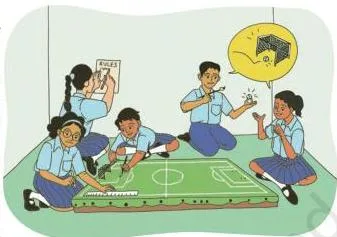
Figure 4.4 shows a model of a game made with craft materials. Activity 2 asks you to build one because making it with your hands — a board from cardboard and buttons, a pitch, a field with boundaries — forces you to notice the details of the game before you ever code it (NCERT, p. 86).
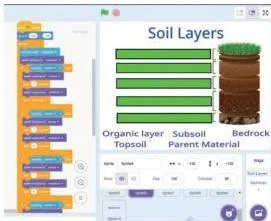
Figure 4.5 is a Scratch game that asks the player to identify and match the layer of soil correctly. It is an educational game, and that is the point: games are not only for fun, they can teach — which is why Activity 4 sends you searching with prompts like “educational Scratch games for school students” (NCERT, p. 88).
Figures 4.6 to 4.8: Sprites, backdrops and uploading
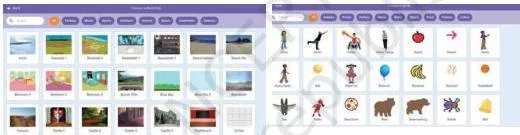
Figure 4.6 shows the two layers every project has: the backdrop, the background of the stage, and the Sprite, the character or object that performs on it (NCERT, p. 89).
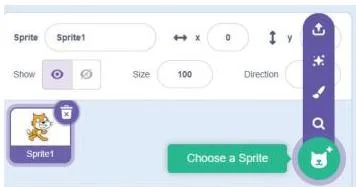
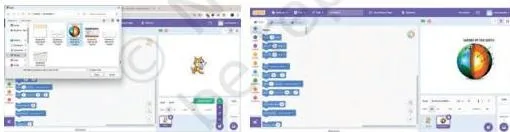
Figure 4.7 shows choosing the Sprite to be loaded on to your game — Scratch has an in-built library of Sprites. Figure 4.8 shows uploading a Sprite on a computer, which is how your own drawing or photo gets in. Activity 5 asks you to try both and to answer the Yes/No checklist, including whether you could change the Sprite’s costume (NCERT, p. 89).
Figures 4.9 and 4.10: making things move
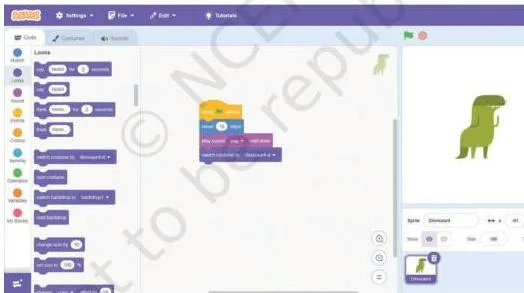
Figure 4.9 is the core action of Scratch: select your Sprite, and drag the code blocks on to your window to have it follow your instructions (NCERT, p. 91). These blocks are what animation is made of.
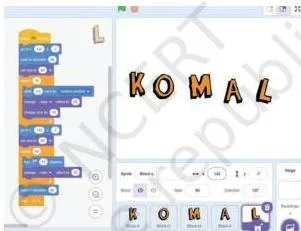
Figure 4.10 shows that animation does not need a character at all — the letters are animated in this window. That is the idea behind the animated birthday card in Activity 7: a friend’s name or a birthday message can move and greet them (NCERT, p. 92).
Figure 4.11: the storyboard — plan before code
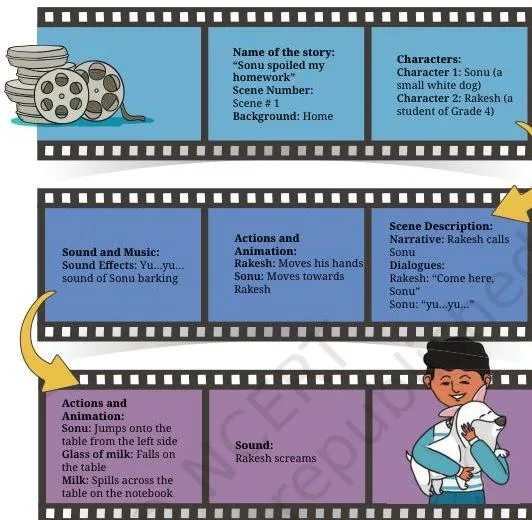
Figure 4.11 is an example of a storyboard for an animation — sketched frames with notes and special instructions. The book’s example even plans the details: Rakesh sits at a study table with a glass of milk, and Sonu jumps towards him, making the glass fall and spill the milk (NCERT, p. 94).
Everything in your head goes into the storyboard so you do not stop and think while building (NCERT, p. 93).
Figure 4.13: extensions and the Pen
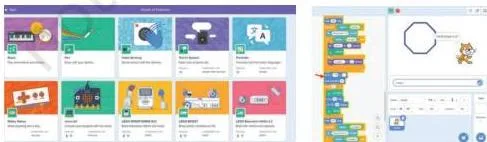
Figure 4.13 shows Scratch extensions — extra features you can turn on. The example is the Pen extension, which lets you create your own shapes and figures (NCERT, p. 100). Extensions are an optional extra for the “What else can I do?” stage, not part of the main activities.
Coding words in this chapter, explained simply
The activity pages assume you already know a handful of coding words. Here is each one in plain language, with the NCERT page where the chapter uses it.
| Term | What it means | NCERT page |
|---|---|---|
| Programmer | A person who writes instructions for computers and smartphones | p. 82 |
| Coding | Writing the instructions that make a device respond when you use it | p. 82 |
| Programme | A series of instructions given to a computer or smartphone | p. 82 |
| Visual programming language | A language like Scratch in which instructions are combined as blocks instead of typed text | p. 82 |
| Blocks | Ready-made instruction pieces that you drag and connect to create sets of instructions | p. 82 |
| Sprite | A character or object you add to a Scratch project | p. 89 |
| Backdrop | The background of the stage in a Scratch project | p. 89 |
| Costume | The look of a Sprite; changing costumes is how you animate it | p. 90 |
| Storyboard | A plan, like a roadmap, showing what will appear on screen during a game or animation | pp. 93–94 |
| Bug | An issue in the game that must be removed for smooth working | p. 97 |
| Text prompt | A keyword or description you give to an AI image generator | p. 90 |
| AI image generator | A tool that processes your text prompt and creates an image to match it | p. 90 |
| Extension | An extra feature in Scratch, such as the Pen extension | p. 100 |
| Event blocks | Blocks that trigger actions in response to specific events; a script needs one to start | pp. 95–96 |
Common mistakes in this project and how to fix them
This project is absorbing, and students rush the parts that are not on screen — planning, testing and asking permission. The chapter itself points at each of these traps; the table names them before they cost you time.
| Mistake | Correct rule | How to check your answer |
|---|---|---|
| Skipping the storyboard | A storyboard is the detailed plan; without it you stop and think as you start making the game (NCERT, p. 93) | Sketch the characters, their responses and the scene order before opening Scratch |
| Writing code that never starts | Every action needs a trigger — the book tells you to use Event blocks to trigger actions in response to specific events (NCERT, p. 96) | Check that the script begins with a start or event block; no trigger means the Sprite sits still |
| Sharing the game before testing | Activity 10 is the test step: publish, let classmates play, and remove the bugs for smooth working (NCERT, p. 97) | Ask at least one other person to play your game, then fix what they find |
| Using photos without permission | Take permission first when using photographs of people and objects around you (NCERT, p. 100), and open the Scratch account with a teacher’s or family member’s email (NCERT, p. 88) | Did you ask before capturing or uploading? Is the email one that an adult approved? |
| Ignoring the screen-time rule | Excess screen time is not good for mental and physical health; outdoor play keeps body and mind well (NCERT, p. 84) | Are you following the screen-time limits your teacher or family set? |
| Leaving the checklists to the end | The Yes/No questions are a record you can refer to later, so they belong with the activity (NCERT, p. 91) | Answer each checklist in the same period you finish the activity |
How your project record is checked at school
This chapter is built as a working record, not a reading lesson. The dotted lines, Yes/No boxes and tables are where your work is documented, and they are what a teacher or the adult helping you will look at.
The checkable parts run through the whole project:
- Self-assessment questions in each activity — the Yes/No checklists in Activities 3, 5, 6 and 7 and in the coding step (pp. 87–96).
- Written answers on the dotted lines — the rules of your favourite game (p. 84), how you resolved challenges (pp. 92, 96), and the suggestions you used from peers (p. 94).
- The storyboard and the game logo you prepare (pp. 93–95).
- The timeline table in “What did I do and how long did it take?”, where you mark the approximate number of periods each activity took (p. 100).
- The reflection page “What did I learn from others and how did I use it?” — tutorials watched, help received, techniques learned from peers (p. 98).
- The closing “Think and Answer” questions, including the jobs related to the project: programmer, software developer, game developer and 3D animator (p. 101).
The practical rule is to fill each record section in the same period you do the activity. The details — which block worked, which suggestion you used — are fresh then, and a timeline filled from memory at the end is neither accurate nor useful.
Textbook contents and the examinable syllabus are not always identical, so check the current official syllabus for how this project is assessed in your school. The chapter itself asks you to keep the record as you go, and a complete record is the evidence that you did the project.
If you want the whole book in note form for revision, the Kaushal Bodh Class 6 notes page brings every project’s key points together.
Write the code for your game: a first Scratch animation recipe
The chapter names the block families you will use — Motion, Looks, Sound, Events, Control, Sensing, Operators and Variables (NCERT, p. 95). The hardest part for a beginner is not knowing the blocks; it is knowing how to start. The rule is simple: a script needs a trigger first.
Example: make a Sprite take a short walk
This example uses its own numbers, so you can test it in Scratch without copying the book’s steps. Build the script in this order:
- Start with an Events block. Drag “when green flag clicked” to the top of the window. This is the trigger — without it nothing happens.
- Add a Motion block. Attach “move 30 steps” below the trigger. The Sprite moves once.
- Add a Control block. Attach “wait 1 second” so the movement is slow enough to see.
- Add a Looks block. Attach “say Hello for 2 seconds” so the Sprite speaks.
- Wrap steps 2–4 in a loop. Put a “repeat 5 times” Control block around them, and the whole walk happens five times. Change 5 to 20 and the movement changes — that is what loops do.
Every script in this project follows the same shape: a trigger, then blocks that do something, then loops and conditionals that decide how often and when.
The book’s own checklist for the coding step names exactly these pieces: Motion and Looks blocks to programme the Sprite’s movement, Control blocks to define the rules, if-else conditionals, loops, variables and sensing blocks for interactive gameplay, Event blocks to trigger actions, and Sound blocks for background music (NCERT, p. 96).
The book’s big coding step, mapped
After Activity 8, the chapter asks you to write the code for the game you designed, with the help of your teachers or any other person (NCERT, p. 95). The checklists divide the work into three:
- Setting the stage — choose or create a backdrop by importing an image, and design or import your Sprite and objects (p. 96).
- Coding your Sprite — combine Motion and Looks blocks to programme movement, and experiment with blocks to control movement, interactions, animations and game logic (p. 96).
- Implementing game mechanics — define the rules with Control blocks, use conditionals, loops, variables and sensing, trigger actions with Event blocks, and add background music with Sound blocks (p. 96).
The step also asks for a logo with the name of your game, pasted as a photograph (p. 95). Activity 6, where you animate a single Sprite with these same block families, is the practice run for this step (NCERT, p. 91).
Project 4 in five steps: the quick recap
If you need the whole project in your head at once, it is five phases.
- Think about games. Activities 1–3: answer the game-design questions, model a favourite game, and try online games (pp. 84–87).
- Meet Scratch. Activity 4: search for Scratch games, create your account, and explore the screen (pp. 87–88).
- Build. Activities 5–8 and the coding step: bring in Sprites and backdrops, animate with blocks, make the birthday card, plan your game on a storyboard, and write its code (pp. 89–96).
- Test and share. Activities 10–11: click Share, play-test for bugs, and introduce the game in a clip or document (p. 97).
- Reflect. The closing pages: note what you learned from others, how long each activity took, and answer Think and Answer (pp. 98–101).
The book’s own promise closes the loop: at the end of this project you will be able to create a simple Scratch project with block programming, and design games and animations using Scratch (NCERT, p. 83).
If the activities felt easy, the chapter’s “What else can I do?” offers two extensions: animate a favourite folk story after discussing it with family and preparing a storyboard, or use extensions such as the Pen extension to draw your own shapes and figures (NCERT, p. 100).
Remember the standing rule — take permission before using photographs of people and objects around you.
Related resources
This listing is maintained for the 2026-27 academic session using the NCERT textbook information available to us. NCERT remains the authority for confirming the latest edition.
Two kinds of next step exist for this project: staying inside the book, or revising what you have learned.
Inside the book: the Kaushal Bodh Class 6 book page lists every project in this vocational education textbook, and the Class 6 NCERT books hub links the other Class 6 subjects. The project before this one — Work with Machines and Materials — is on its own page, and the next one is Project 5.
For revision: the Kaushal Bodh Class 6 notes page summarises the projects, the Class 6 notes hub collects every Class 6 subject, and the main notes index is where all subjects start. The earlier Work with Machines and Materials project and Project 5 each have notes too.
The official Project 4 Class 6 Kaushal Bodh PDF (Animation and Games) is the NCERT file you should bookmark, and the NCERT textbook portal holds every chapter of the book if you ever need to confirm the file.
Textbook contents and the examinable syllabus are not always identical, so check the current official syllabus for what is assessed.
Sources and data verification
This page describes the NCERT Kaushal Bodh textbook — Grade 6, Vocational Education — chapter 4, Project 4: Animation and Games, official NCERT edition. The chapter is printed on NCERT pages 80–101.
What this page covers, and what it does not: it covers this one chapter of this one book. It does not cover other vocational education titles, other chapters of the book, or other classes.
This page is maintained for the current academic session using the NCERT information available to us.
Which authority settles what: NCERT settles textbooks, editions and official PDFs; CBSE settles curriculum, syllabus and examinations.
| What the chapter holds | Count | Where it is used |
|---|---|---|
| Printed pages | 22 | |
| Figures with NCERT captions | 17 | |
| Tables | 1 | |
| Official NCERT PDF | Download the chapter PDF | the chapter exactly as NCERT publishes it |
Reference: NCERT Class 6 Kaushal Bodh Vocational Education textbook, chapter 4, official edition on ncert.nic.in.
Frequently asked questions
What is Project 4 in the Class 6 Kaushal Bodh book about?
Project 4, Animation and Games, teaches you to create your own games and animations using Scratch, a visual programming language (NCERT, p. 81). You think about games you already play, learn the Scratch screen, build an animated birthday card, design and code your own game, then test, share and reflect on it.
By the end you should be able to create a simple Scratch project with block programming and design games and animations using Scratch (NCERT, p. 83).
What is a visual programming language, and why does Scratch use blocks?
In a visual programming language, instructions are clubbed into ready-made “blocks” that you drag and connect, instead of typing programmes as text (NCERT, p. 82). That is why Scratch is easy to use — you “write” programmes by combining blocks, which is the same idea the whole project depends on.
What is a storyboard and why does the project ask me to make one?
A storyboard is a plan, like a roadmap, of what will be shown on the screen during a game or animation — you sketch characters, how they respond to commands, and the sequence of actions (NCERT, p. 93). The book says a detailed plan means you do not have to stop and think as you start making your game (NCERT, p. 93).
Can I use AI to make images for my Scratch game?
Yes. An AI image generator takes a keyword — called a text prompt — and creates an image that best matches that description (NCERT, p. 90). Activity 5 suggests you describe what you want in simple words, refine the result, and then download or save the image for your game (NCERT, p. 90).
How do I share the game I make on Scratch?
Click the “Share” button in Scratch to publish your game, then request other group members to play it (NCERT, p. 97). If they find issues — bugs — you remove them for smooth working, and then you introduce the game, its name, components and rules, through an audio or video clip or a document (NCERT, p. 97).
What jobs are connected to this Animation and Games project?
The book’s closing page names programmer, software developer, game developer and 3D animator as a few examples of jobs related to the activities (NCERT, p. 101). It also asks you to look around and speak to people to find more.
Explore Class 6 Vocational Education Books
- Previous: Work with Machines and Materials
- Next: Project 5
Related chapters:
- Work with
- Project 2
- Project 6